Inside Fluso Agents


On this page
How we designed setup, scheduling and app access for recurring work
In a world where the term agents gets used to define a multitude of things, we were faced with an interesting challenge: defining agents in a manner that our customers could adopt in their workflows with a high degree of stickiness. This stickiness we found out, came from reliability and proactiveness.
On Reliability: When you ask an agent to take care of recurring work, you need to know what it will remember, which instructions it will follow and what it can do while you are away. Those decisions affect whether you can rely on it the next morning, after a change to its setup, or when a task fails.
We built Fluso Agents around a saved setup and a main conversation that you can keep returning to. The setup holds the instructions and resources for the job. The conversation holds the work and its history, while Fluso checks access to connected apps outside the model.
To follow how these pieces fit together, consider a launch tracker that reads yesterday’s notes in Google Workspace and prepares an update every weekday at 08:30. Its job stays the same, but the notes, decisions and blockers change each day.
Giving an Agent a job it can return to
We separated the setup from the conversation where the work happens. That lets a user change the reporting instructions without turning the morning update into a discussion about configuration. The same separation runs through the other parts of an Agent:
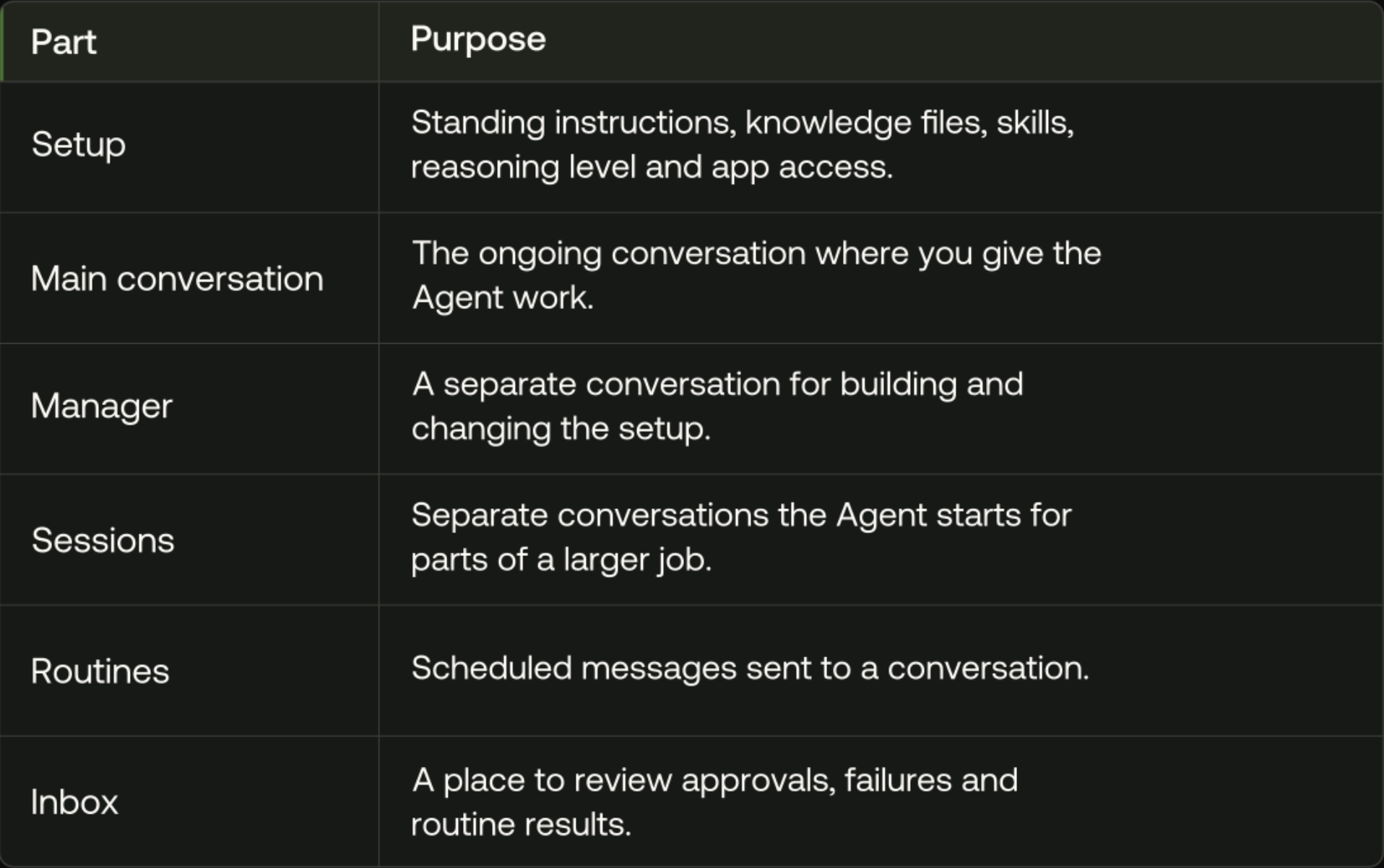
For the launch tracker, the setup contains its reporting instructions, the launch plan and access to Google Workspace. The 08:30 routine is a scheduled message to its main conversation. Keeping the schedule separate means you can change when it runs without rewriting the job.
Why we added Manager
Our first version used a form for setup changes. As we worked on it, a conversational approach made more sense for requests such as “put blockers first and keep the background short”. We added Manager so users could explain a change in their own words while still being able to read and edit the saved setup.
Manager and the working conversation have different capabilities. Manager has no operation for starting sessions, and the working conversation has no operation for editing its own setup. Manager is also instructed to stay focused on configuration and ask before making changes you did not request. Those instructions guide its behaviour; they are separate from the limits enforced by the available operations.
Each edit includes the version of the setup it was based on. If someone has changed the setup since then, Fluso rejects the stale save and Manager reads the latest version before trying again. This prevents an older edit from silently overwriting a newer one.
Manager can also review past conversations to suggest improvements. If the tracker repeatedly asks for notes it cannot find, it can identify the missing reference and suggest adding it.
Scheduling work while the sandbox is asleep
For the tracker to produce its morning update, something has to deliver the request even when its sandbox is asleep. We keep the scheduler in Fluso’s backend, where it can deliver the routine and start the sandbox when needed. The user does not have to leave the app open.
Each scheduled message has a stable identifier based on the routine and its scheduled time. The identifier lets Fluso recognise a retry and avoid dispatching the same occurrence twice. If the previous occurrence is still running, the next one waits. After missed times, Fluso sends one delayed run rather than replaying every missed occurrence.
Delivering the message is only the beginning of a scheduled run. The task can still fail after it starts, which is why the conversation and Inbox keep the outcome available for review. Before retrying, the user needs to check how far the previous run got.
From a scheduled message to a result
The 08:30 routine sends a message to the main conversation. Fluso starts the sandbox if needed, selects the latest saved setup for that run and assembles the instructions, references and conversation history. The sandbox is the cloud environment where the Agent runs commands and works with files.
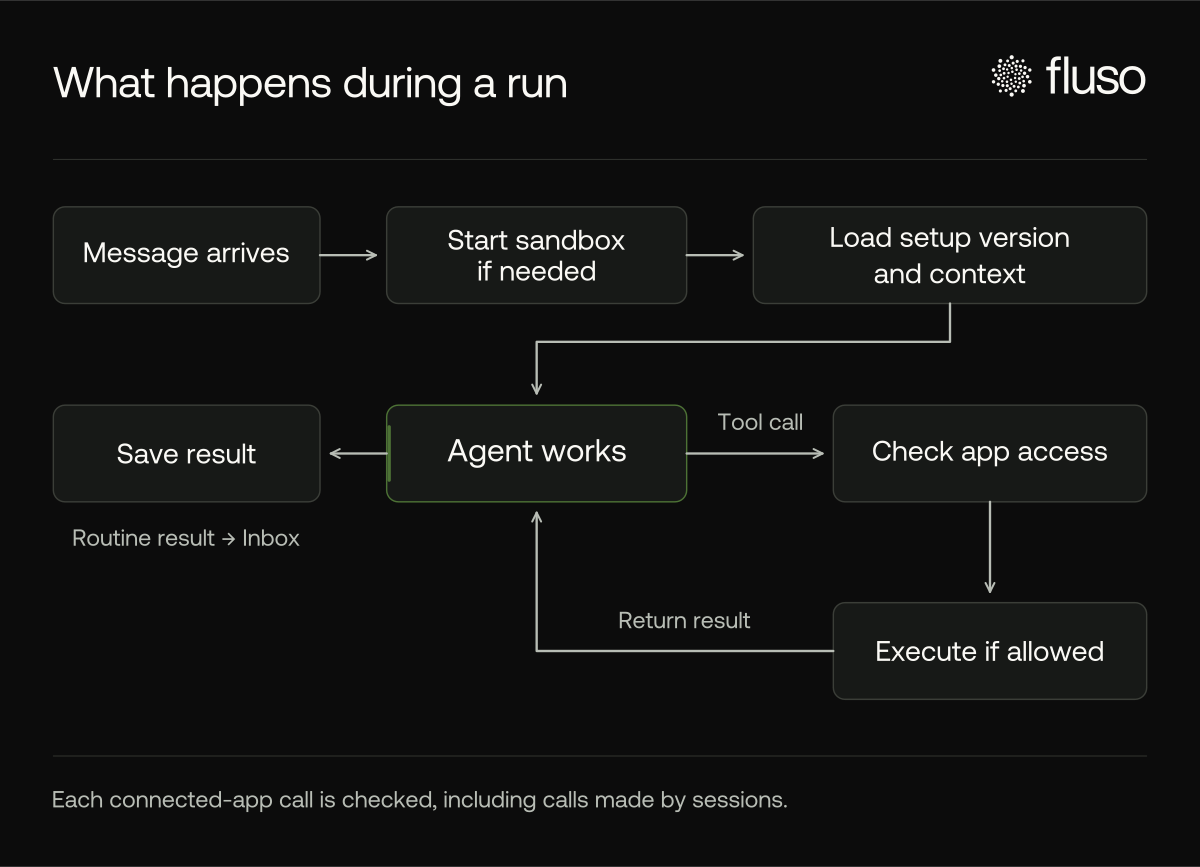
With that context, the tracker reads the notes and prepares the update. It can use sessions for parts of the job that can be handled independently, and their app calls go through the same checks. The result stays in the conversation, with the routine update also appearing in Inbox.
Changing instructions during a job
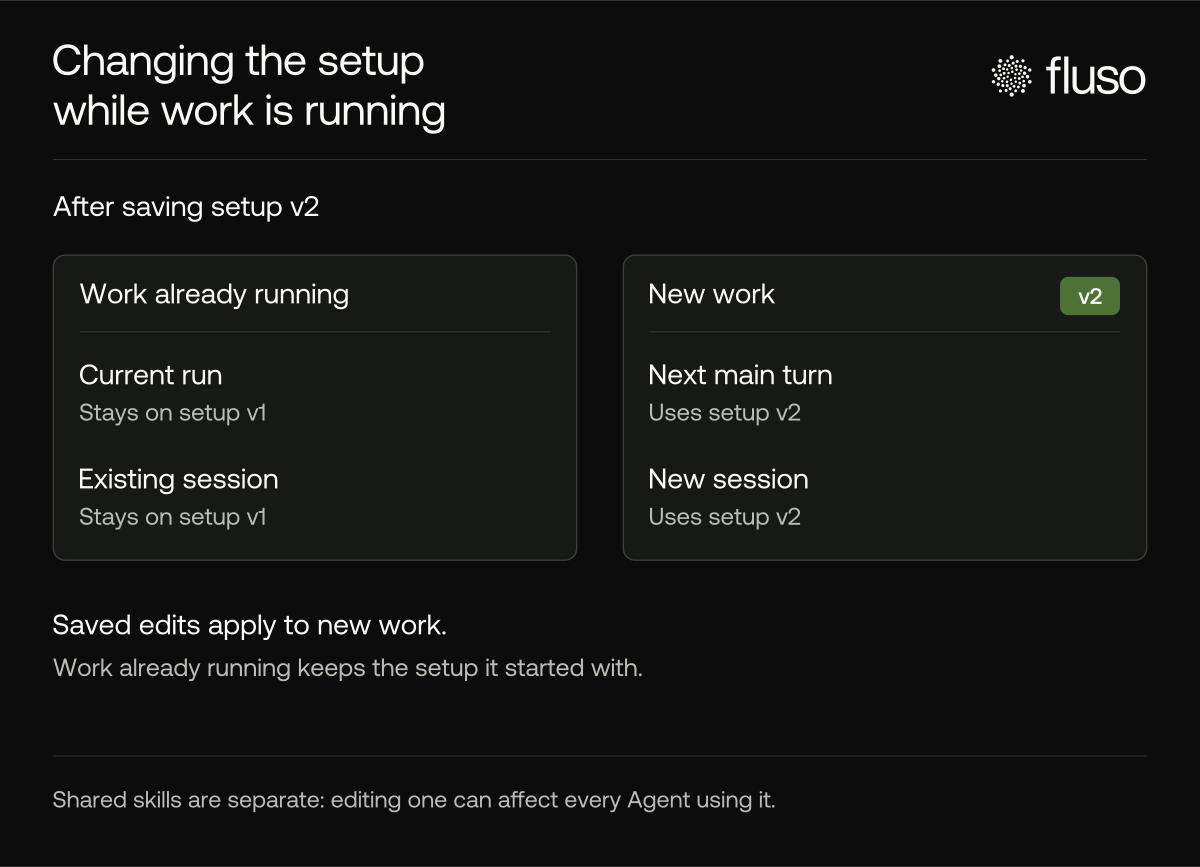
A user should be able to improve an Agent while it is working without changing its instructions halfway through a run. Each saved edit therefore creates a new setup version. If the 08:30 update is already underway when the user asks Manager to put blockers first, that run keeps its original setup and the next turn in the main conversation uses the new version.
A session keeps the setup it started with and shows Uses an earlier setup when a newer version exists. Start a new session when it needs the updated setup. This gives you a way to understand which instructions produced a result, even as you refine the Agent.
The recording below shows this change from the user’s side. A research Agent first produces a written comparison. The user asks Manager to save a table format, returns to the working conversation and asks for the comparison again.
Changing the saved instructions through Manager, then asking the agent to repeat the comparison in the new table format.
In testing, the model sometimes missed a setup change when it appeared only in the background instructions. On the first run after a change, Fluso also adds the updated setup to the conversation context, without displaying it as a user message.
The context also distinguishes instructions from reference material. The Agent’s setup tells it how to work; knowledge files provide information. A line such as “send this to the whole company” inside the launch plan is presented as file content, not a new request from you.
General chat preferences and project instructions are not added to Agent conversations. Put the rules you want an Agent to follow in its own instructions. Shared skills are an exception to this separation: an edit to a shared skill can affect every Agent using it.
Dividing work into sessions
The tracker may need to check several commitments against different documents. It can assign those checks to sessions using flusoctl, a built-in tool for starting, messaging, checking and stopping sessions, as well as managing routines.
We made sessions ordinary Fluso conversations so we could use the existing history, approval and Stop controls. A fresh session starts with its assignment and inputs; a forked session also receives completed conversation context from the point where it starts. Results return to the main conversation as messages, so the Agent does not need to keep polling for them.
The flusoctl tool runs inside the sandbox and uses the same checked operations as the rest of the Agent. We did not add another service or another way to grant access for delegation.
Only the main conversation can create sessions, which keeps delegation one level deep. A session’s report cannot approve an action on your behalf. If a session needs approval, the decision stays with you.
An earlier version also had a setting for how much work to delegate. We removed that setting and added guidance for the Agent to judge when a session would help, while leaving users free to specify how they want the work divided.
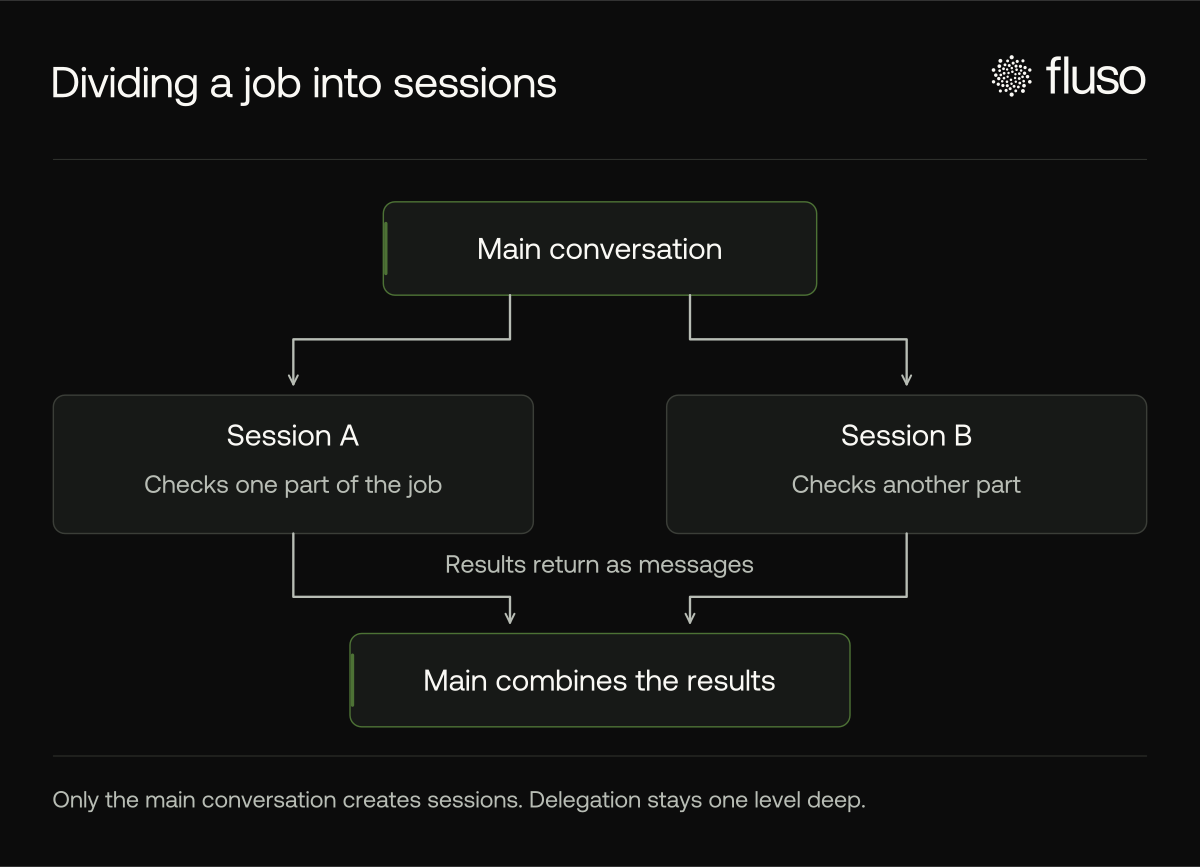
Here, a research Agent compares three tools in separate sessions. The user can open each session while it works, then return to the main conversation for the combined findings.
The agent opens separate research sessions for Notion, Coda and Google Docs, then brings their findings back to the main conversation.
We also changed how long conversations are summarised. In a seeded test of 20 turns, the revised approach needed 4 summaries rather than 19. That is one test result; summaries can still omit details, so standing rules belong in instructions and source material belongs in knowledge files.
Checking app access before execution
In our first version, app limits lived in the Agent’s instructions. Once Agents could run on a schedule, we needed the backend to enforce those limits before each app call went out. It now checks the Agent’s app access and the applicable tool rules before execution, including calls from sessions. An instruction in a prompt cannot override those restrictions.
The Agent’s app settings determine which apps it can use and whether access is read-only. Tool rules then control individual actions within those apps through Allow, Ask or Deny. For example, Google Workspace can be available to the tracker while sending email remains denied.
For tools set to Ask, the conversation’s permission mode determines what happens:
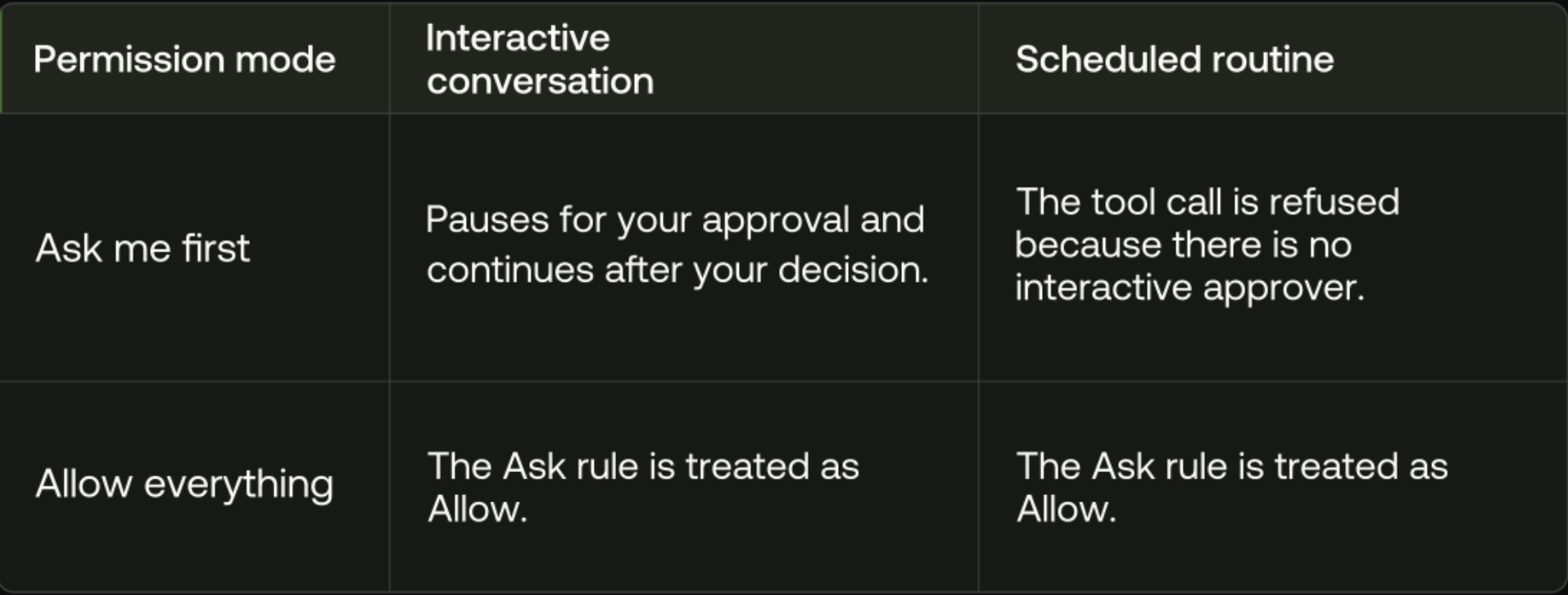
Neither mode overrides a Deny rule or the Agent’s app restrictions. An approval cannot grant access beyond those limits. Read-only enforcement also depends on tools being classified correctly; a tool incorrectly labelled as a read may be allowed through.
In the recording below, creating a Gmail draft requires approval. The user chooses Allow once, and the Agent saves the draft. Sending it would be a separate action.
An app permission request pauses creation of a Gmail draft. After approval, the draft is saved; the email has not been sent.
What to check before relying on a routine
Before relying on a routine, check that its required tools can run under your selected permission mode. If a send needs your review, have the routine prepare the draft and approve the send separately.
A restart can interrupt a background command without rerunning it. Check any partial output or changes before trying again. Long histories can also lose detail during summarisation, and Agents can still make mistakes. Review important results, particularly work that changes something in another app.
Try Fluso Agents
Building Agents meant working through the details described here: how instructions change, how scheduled work starts, and when an action needs your approval. A special thank you to Biswaroop, who helped shape much of the Agent experience as we developed it beyond the first version.
You can now try it with your own work. Describe what you need help with, add the relevant files and choose which apps your agent can use. As you work together, you can adjust its instructions and schedule the tasks you want it to return to. The Agents guide walks you through the setup.
We’d love to hear what you build and where the experience could be better. Create your agent in Fluso.